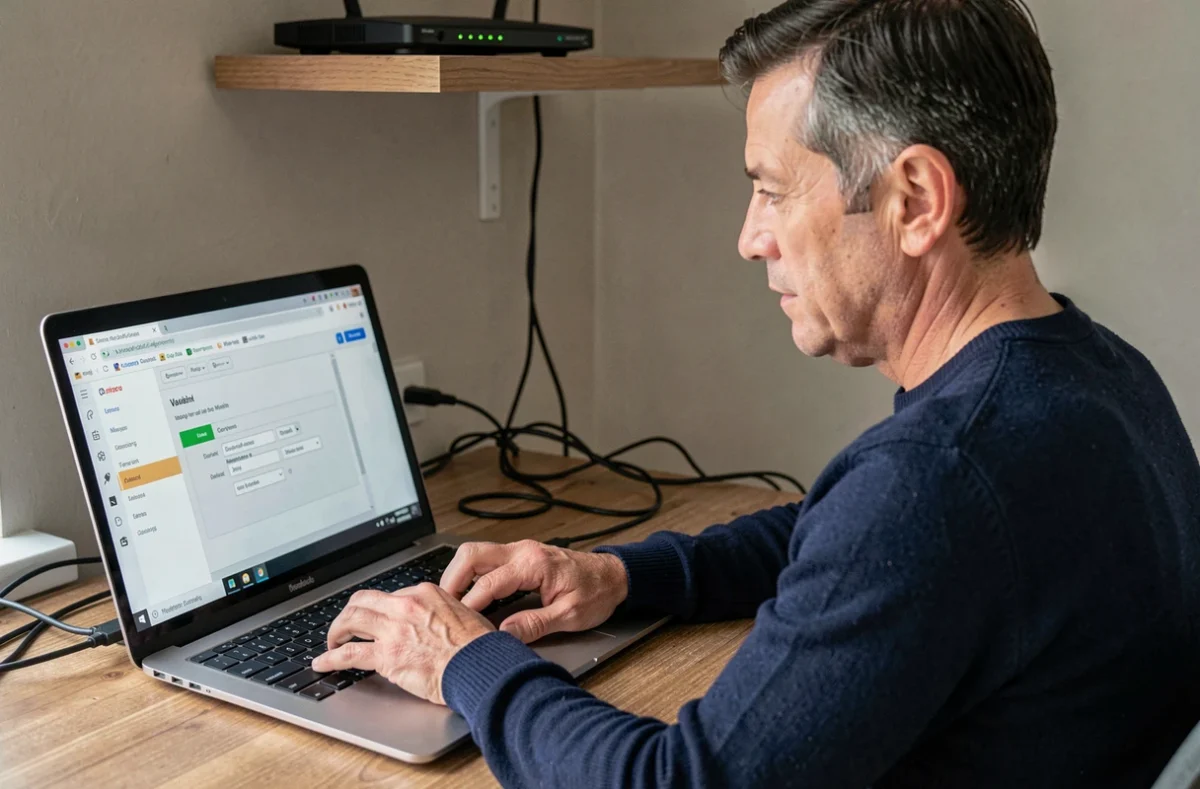
Your internet box has an administration interface accessible from any device connected to your local network. This interface allows you to modify Wi-Fi settings, open ports, configure parental controls, or view the list of connected devices. The problem is that most households have never changed the default credentials for this page. A visitor connected to your Wi-Fi can therefore access it in a matter of seconds.
Admin password and Wi-Fi key: two distinct protections
Have you already changed your Wi-Fi password? That’s a good start, but it does not protect the administration interface of your box. These are two separate locks, and confusing the two is the most common mistake.
The Wi-Fi key controls who can connect to your wireless network. The admin password controls who can modify the settings of the box. A device already connected to the network (a phone, PC, tablet) can attempt to open the management interface by typing the local IP address of the box into a browser. If the admin password is still the factory default, nothing prevents it from entering.
A guide published by Zerobug in September 2026 highlights this distinction and recommends changing the admin credentials and Wi-Fi key separately. Before adjusting Wi-Fi settings, start here: open your box’s interface, go to the administrator account settings, and replace the default password with a passphrase of at least twelve characters. You can access the hebdolinux.org space to find the procedure suitable for each operator.
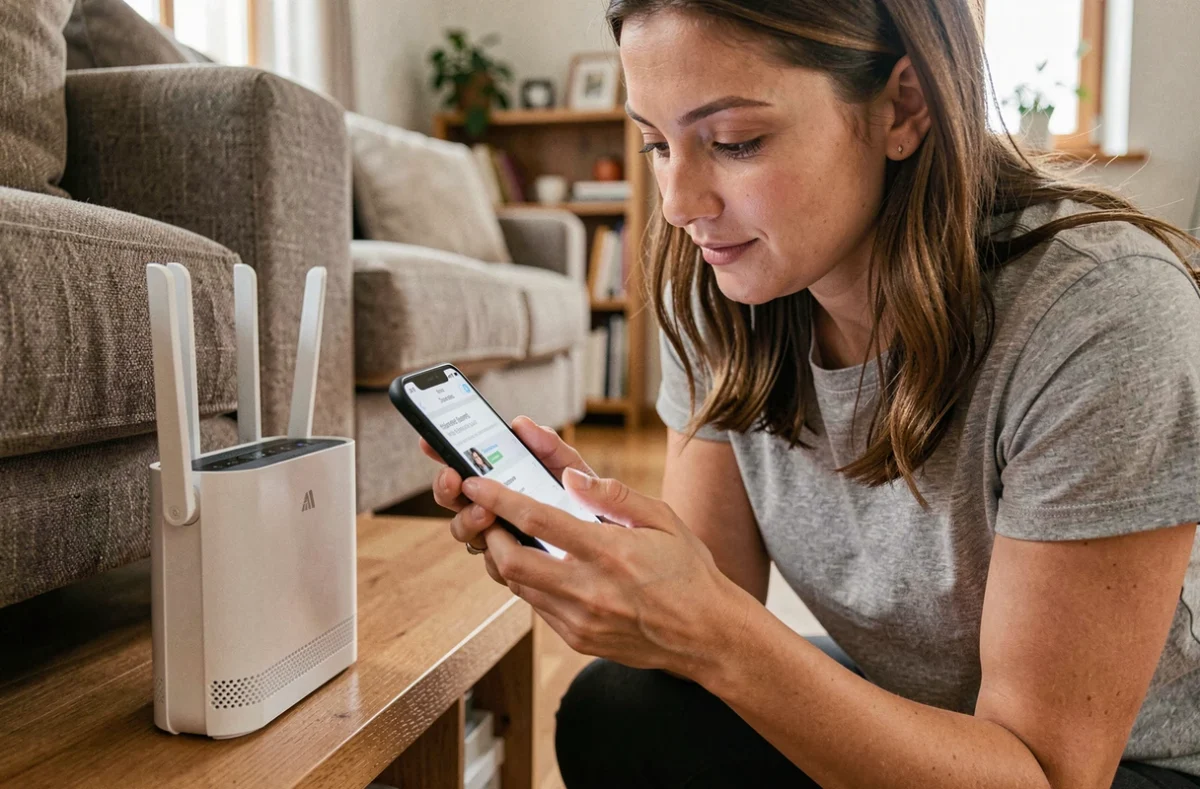
Remote administration of the box: a risk often ignored
Most boxes offer a remote administration option. This allows access to the management interface from outside your network, via the Internet. On paper, it’s convenient. In practice, it’s an open door to your network configuration for anyone who knows your public IP address.
Disable remote administration if you do not have a specific need for it. This option is usually found in the advanced settings or in the “remote access” section of the administration interface. If you absolutely must access it outside your home, two precautions reduce the risk:
- Limit access to a whitelist of IP addresses, meaning only allow your own work or mobile connection to join the interface
- Use a VPN configured on the box (some models allow this natively), which encrypts the connection and prevents interception of the credentials
- Ensure that the protocol used is HTTPS and not HTTP, to avoid your credentials being transmitted in plain text over the network
An attacker who accesses the administration interface can redirect your traffic, modify the DNS servers used by your devices, or open ports to penetrate deeper into your local network. It’s not worth the risk if remote access is not protected.
Connected devices and firmware: two checks to make now
Check the list of connected devices
Before suspecting an intrusion because your connection is slowing down, open your box’s interface and check the list of connected devices. This list is the most reliable indicator of unauthorized presence on your network. A slowdown in speed can have other causes (overloaded remote server, Wi-Fi interference, background updates).
Each connected device appears with its MAC address and sometimes its name. If you spot an unknown device, you can block it directly from the interface. It’s also an opportunity to disable WPS (Wi-Fi Protected Setup), that physical button that allows connecting a device without typing a password. WPS is a known and documented vulnerability: it can be exploited by brute force in a matter of hours.
Update the box firmware
The firmware is the internal software of your box. It fixes security vulnerabilities, improves stability, and sometimes adds functions. For most operators, the update happens automatically. Still, check in the interface that you are on the latest available version.
An alert published in late August 2026 revealed that some 4G/5G routers sold under different brands contained a backdoor in their firmware that neither changing the password nor resetting removed. This case concerns routers purchased separately, not the boxes provided by operators. If you are using a personal router behind your box, check the brand and model with the manufacturer.
Wi-Fi configuration: WPA3 encryption and network name
Encryption protects the data that flows between your devices and the box. The current standard is WPA3. If your box does not offer it, use WPA2 in AES mode. WEP and first-generation WPA protocols are outdated and can be cracked in a few minutes.
Your Wi-Fi network name (SSID) should not contain your name, address, or the model of your box. This information makes it easier for an attacker looking to exploit a specific model vulnerability. Choose a neutral name that is unrelated to your identity.
Also, check if your box broadcasts a guest Wi-Fi network. This secondary network isolates visitors’ devices from your main network. Devices connected to the guest network cannot access your shared files or the administration interface. If your box offers this function, enable it and provide the guest password instead of your main network password.
The security of an internet box relies on simple settings that are rarely performed. Changing the admin password, disabling unnecessary remote access, and regularly checking the list of connected devices are enough to close the vast majority of entry points. These are actions to take once, with a lasting effect on the protection of your network.